I've been checking out the genealogy Apps available for my Kindle Fire HD at the
Amazon Store. As I've mentioned on my previous posts about the Kindle, I'm on
a fixed income, so my motto for Amazon apps is "Free is GOOD". Unfortunately there
are not as many genealogy apps as there are game apps, but still, I was happy to find
there were two available from well known genealogy websites, Ancestry and FamilySearch.
This post will be about the FamilySearch app which is named Family Search Tree and
uses an icon of a green tree on a white background.
You can use the Family Tree app to build a tree on your Kindle, or, if you already have a
family tree started on the FamilySearch website, you can import it into the app. If you have
a large tree, this may take awhile. I imported my tree, and saw this Pedigree chart screen
when it was done:
You can move further back on your Pedigree chart using the up arrows over each ancestor's
box. The screen view is also expandable:
Tapping on an individual's box brings you to their "Person" screen where you can edit or
add information.
If you want to see the "Person" page for another of your ancestors on the Pedigree screen
you just came from, tap on the circular arrow in the upper right of the screen, and this will
appear:
If you want to see the "Person" page for an ancestor that was not on the Pedigree screen
you just viewed, you can Search for them by tapping on the magnifying
glass icon. This is the screen that appears:
If you add more information to your family tree at the FamilySearch website, it will
synch with the FamilySearch Tree app whenever you start it up on your Kindle.
One of the useful features of the app is that you can see the first five generations on
you family tree even if you do not have an internet connection at the time. This means
you now have a visual aide while discussing the family history with relatives at family
gatherings.(They may not be as thrilled as we genealogists are by that. )
To me the only drawback to the Family Search Tree app is that the tree on the website is
a "shared" tree where people can edit or change the information you've entered on it, so
whenever you synch with the app those changes will be made to the tree on your Kindle.
Since I find dealing with mistakes people have made to information I entered frustrate me,
I haven't used the app as much as I would have liked to have done.
Other than that, I find the Family Search Tree app easy to use, and of course, it's FREE!
I'll discuss the Ancestry App in a later post.
DISCLAIMER: I neither work for nor receive any compensation from Amazon
or FamilySearch.
A blog about genealogy and thoughts about the various roots and branches of my family tree as well as the times in which my ancestors lived.Included are the West, White,and McFarland families.WARNING:DO NOT TAKE ALL OF MY FAMILY RECORDS AS GOSPEL. ALWAYS CONFIRM YOUR OWN RESEARCH!
Showing posts with label Kindle Fire. Show all posts
Saturday, May 30, 2015
Wednesday, April 15, 2015
KINDLE-ING GENEALOGY: AT THE CEMETERY
Spring is here in New England, finally! The snow is melted here in Southeastern
Massachusetts and it's time to go out and do some graveyard hopping. Today I
did my first Find A Grave photo requests hunt of the year, and I took my Kindle
Fire along.
I'd filled some requests yesterday for one person using photographs I already had
on my hard drive from the Mt Vernon cemetery here in Abington. But I noticed
the person also had requests for more members of the same family over at
Colebrook Cemetery in Whitman, the next town over from here. I decided to
drive over this afternoon and see what I could find.
There were 17 photo requests for Colebrook, and in the past I'd have written
out or printed off the list. Today I took a screen shot of the request page on my
Kindle Fire.
I'm familiar with Colebrook Cemetery and headed for the section where most
of people who died in the late 19th and early 20th century are buried. The
family name I was looking for was Cook, and once I got to the cemetery I
turned on my Kindle, went to the screen shot and zoomed in on the 9 Cook
family names. Since the screen shot was on the Camera Roll, I didn't need
an internet connection to access it.
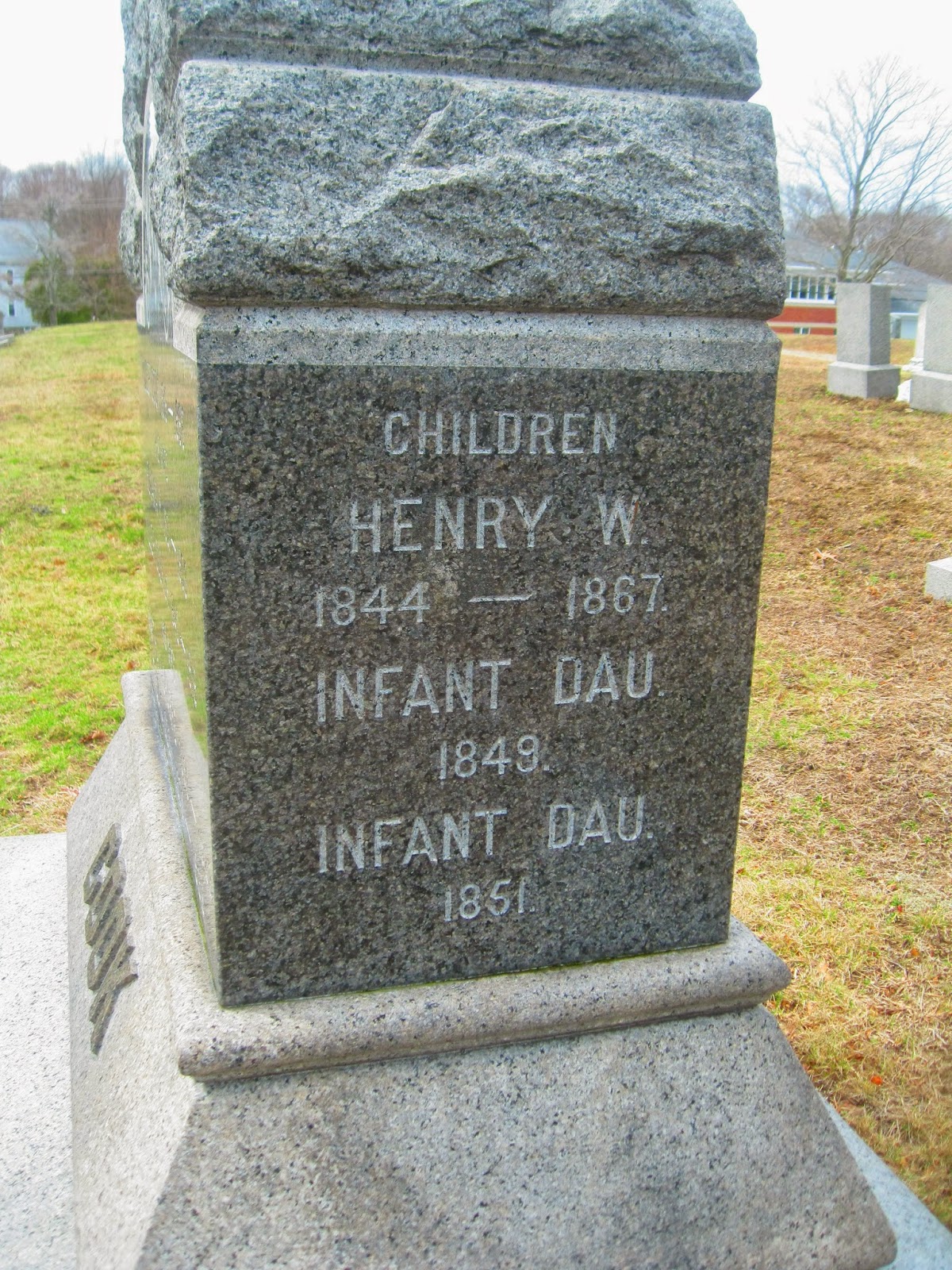
I scouted out the headstones near the cemetery roads first and lucked out There
was a gravestone with all 9 people listed on it. I got out ofthe car and took my
pictures. I was done and on my way to pick up some grocerieson the way home
in less than ten minutes.
All in all, it went very well. The one minor problem was seeing the Kindle screen
in daylight, which is why I looked at it inside the car where I could see it more
easily. From now on, I'll be doing my gravestone hunting using this method
DISCLAIMER: I neither work for nor receive any compensation from Amazon or
Find A Grave.
Massachusetts and it's time to go out and do some graveyard hopping. Today I
did my first Find A Grave photo requests hunt of the year, and I took my Kindle
Fire along.
I'd filled some requests yesterday for one person using photographs I already had
on my hard drive from the Mt Vernon cemetery here in Abington. But I noticed
the person also had requests for more members of the same family over at
Colebrook Cemetery in Whitman, the next town over from here. I decided to
drive over this afternoon and see what I could find.
There were 17 photo requests for Colebrook, and in the past I'd have written
out or printed off the list. Today I took a screen shot of the request page on my
Kindle Fire.
I'm familiar with Colebrook Cemetery and headed for the section where most
of people who died in the late 19th and early 20th century are buried. The
family name I was looking for was Cook, and once I got to the cemetery I
turned on my Kindle, went to the screen shot and zoomed in on the 9 Cook
family names. Since the screen shot was on the Camera Roll, I didn't need
an internet connection to access it.
I scouted out the headstones near the cemetery roads first and lucked out There
was a gravestone with all 9 people listed on it. I got out ofthe car and took my
pictures. I was done and on my way to pick up some grocerieson the way home
in less than ten minutes.
All in all, it went very well. The one minor problem was seeing the Kindle screen
in daylight, which is why I looked at it inside the car where I could see it more
easily. From now on, I'll be doing my gravestone hunting using this method
DISCLAIMER: I neither work for nor receive any compensation from Amazon or
Find A Grave.
Wednesday, March 25, 2015
KINDLE-ING GENEALOGY: ADDING ONEDRIVE
I recently decided to finally take the plunge into backing up my files in the "cloud".
There are a lot of programs to choose from and for awhile I stressed out over which
one to choose. Dropbox, Google Drive, and One Drive were my final three choices, and
I ended up choosing Microsoft's OneDrive based on two features: first, the free 15GB
storage, and secondly, the OneDrive app for Kindle.
I went to the Micrsoft OneDrive website and created a Microsoft account (using a
different password than the ones I use for Gmail and Facebook). I then saw I could add
an additional 15GB by linking my Camera Roll to my OneDrive account. I knew I had a
Camera Roll on my Kindle, so if I was able to make that link I'd have a total of 30 free GB
to work with for my genealogy files.
Next I went to the Kindle App store and downloaded the Onedrive app. Once I did that,
I was able to link the Camera Roll and got the extra 15 GB. Now came the work. I have
over 110 surname folders and 2.66GB of images and documents in my genealogy files on
my laptop. Being paranoid, I didn't want to Move all those files to the cloud, just Copy them
there. I went to the Onedrive folder, then to Documents and created a Genealogy folder.
Then over the course of this last week I gradually copied everything from the laptop to
the OneDrive cloud.
When I first started and checked the OneDrive app on my Kindle, the screen looked like this:
Pretty looking but I wondered if all those thumbnails might be a drain on my Kindle's battery,
so I changed to the more practical List format:
One suggestion: whether you Move or Copy folders to OneDrive, do it one folder at a time.
It's much faster.
And since my first post about the Kindle, I've learned how to take Screen Shots with my
Kindle Fire HD6: you press the Sound Volume Bar and the Power button at the same time.
I don't know if this works for earlier Kindle models, but at least there won't be any more camera
reflections on images from my Kindle's screen.
DISCLAIMER: I neither work for nor receive any compensation from Amazon or Microsoft.
There are a lot of programs to choose from and for awhile I stressed out over which
one to choose. Dropbox, Google Drive, and One Drive were my final three choices, and
I ended up choosing Microsoft's OneDrive based on two features: first, the free 15GB
storage, and secondly, the OneDrive app for Kindle.
I went to the Micrsoft OneDrive website and created a Microsoft account (using a
different password than the ones I use for Gmail and Facebook). I then saw I could add
an additional 15GB by linking my Camera Roll to my OneDrive account. I knew I had a
Camera Roll on my Kindle, so if I was able to make that link I'd have a total of 30 free GB
to work with for my genealogy files.
Next I went to the Kindle App store and downloaded the Onedrive app. Once I did that,
I was able to link the Camera Roll and got the extra 15 GB. Now came the work. I have
over 110 surname folders and 2.66GB of images and documents in my genealogy files on
my laptop. Being paranoid, I didn't want to Move all those files to the cloud, just Copy them
there. I went to the Onedrive folder, then to Documents and created a Genealogy folder.
Then over the course of this last week I gradually copied everything from the laptop to
the OneDrive cloud.
When I first started and checked the OneDrive app on my Kindle, the screen looked like this:
Pretty looking but I wondered if all those thumbnails might be a drain on my Kindle's battery,
so I changed to the more practical List format:
One suggestion: whether you Move or Copy folders to OneDrive, do it one folder at a time.
It's much faster.
And since my first post about the Kindle, I've learned how to take Screen Shots with my
Kindle Fire HD6: you press the Sound Volume Bar and the Power button at the same time.
I don't know if this works for earlier Kindle models, but at least there won't be any more camera
reflections on images from my Kindle's screen.
DISCLAIMER: I neither work for nor receive any compensation from Amazon or Microsoft.
Monday, March 16, 2015
KINDLE-ING GENEALOGY: SEND TO KINDLE FOR WINDOWS
In Spring, a young man's fancy turns to love, and a genealogist's fancy turns
to planning trips to archives, libraries, and cemeteries.
We still have snow on the ground here in New England as I type this, but I've
already been thinking about what I may do once it's melted, and how I could
make things easier for myself, like for instance my trips to cemeteries for Find
A Grave photo requests. In the past I'd print out the list of requests for a particular
cemetery. But back in October I bought a Kindle Fire HD 6 tablet, and I wondered
if there was an easier way to take the list with me, even where there was no internet
connection available.
So I did a Google search ro find out.
It turns out there were three ways I could send the list to my Kindle from my laptop.
The first two was by a USB port connection between the two devices. The second
involved sending the list via email as an attachment. The third, and much easier method,
was the "Send To Kindle For Windows" application from Windows. I read about it in
a CNET review here and it seemed easy enough. I followed the link to the Windows site and
downloaded the app to my laptop and then install the program, which went pretty quickly.
It does require your Amazon account information when you register, so if you don't
already have an account, you need to open one to proceed.
The way "Send to Kind"le works on my laptop is very easy. Whatever document or image
that I want to send to the Documents program on my Kindle, I go to the Print menu for
the document on the laptop, and choose the "Send to Kindle" as my printer:
I have a wireless network in my apartment, so after a few minutes I check my Kindle to
see if the document has arrived.
((Sorry about the camera reflection in the image.))
I can send images as well as documents.
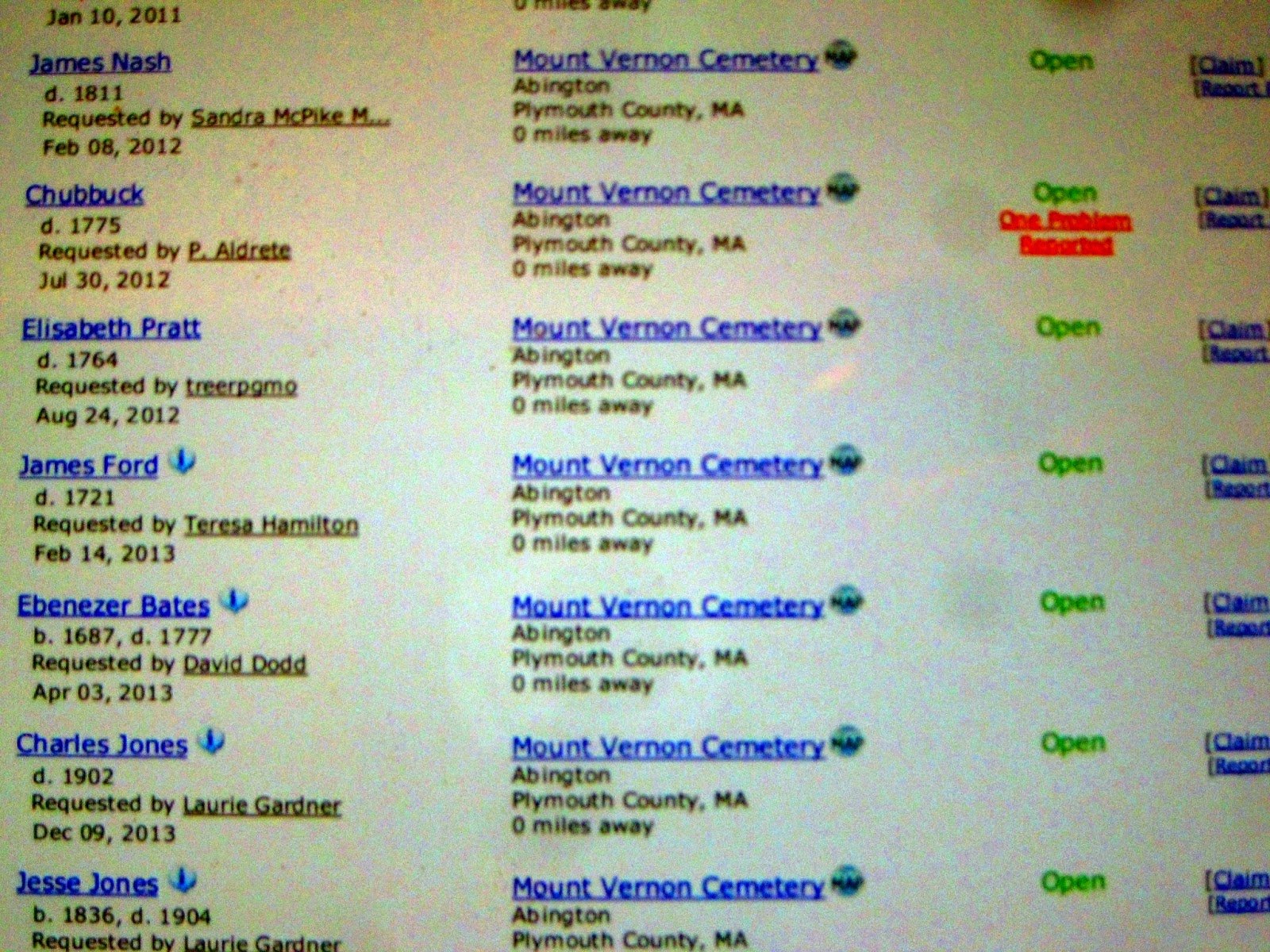
And I can save the Find A Grave Request screen as well. This is for Mt. Vernon Cemetery
here in Abington. The full list requires two images, and I can zoom in on them to make
them easier to read.:
The only restriction that I can find so far is that the maximum size for the document or
image is 50MB. You also have 5GB free storage available "in the cloud" from Amazon.
The Kindle Fire HD6 tablet is small enough to fit in a pocket like one of the larger cellphones,
and costs less than $100 dollars. The HD7 model costs about $139, but the screen is larger
and it has more memory than the HD6. But either model may be a good alternative to your
laptop or larger tablet when you are out on a genealogy road trip!
to planning trips to archives, libraries, and cemeteries.
We still have snow on the ground here in New England as I type this, but I've
already been thinking about what I may do once it's melted, and how I could
make things easier for myself, like for instance my trips to cemeteries for Find
A Grave photo requests. In the past I'd print out the list of requests for a particular
cemetery. But back in October I bought a Kindle Fire HD 6 tablet, and I wondered
if there was an easier way to take the list with me, even where there was no internet
connection available.
So I did a Google search ro find out.
It turns out there were three ways I could send the list to my Kindle from my laptop.
The first two was by a USB port connection between the two devices. The second
involved sending the list via email as an attachment. The third, and much easier method,
was the "Send To Kindle For Windows" application from Windows. I read about it in
a CNET review here and it seemed easy enough. I followed the link to the Windows site and
downloaded the app to my laptop and then install the program, which went pretty quickly.
It does require your Amazon account information when you register, so if you don't
already have an account, you need to open one to proceed.
The way "Send to Kind"le works on my laptop is very easy. Whatever document or image
that I want to send to the Documents program on my Kindle, I go to the Print menu for
the document on the laptop, and choose the "Send to Kindle" as my printer:
I have a wireless network in my apartment, so after a few minutes I check my Kindle to
see if the document has arrived.
((Sorry about the camera reflection in the image.))
I can send images as well as documents.
And I can save the Find A Grave Request screen as well. This is for Mt. Vernon Cemetery
here in Abington. The full list requires two images, and I can zoom in on them to make
them easier to read.:
The only restriction that I can find so far is that the maximum size for the document or
image is 50MB. You also have 5GB free storage available "in the cloud" from Amazon.
The Kindle Fire HD6 tablet is small enough to fit in a pocket like one of the larger cellphones,
and costs less than $100 dollars. The HD7 model costs about $139, but the screen is larger
and it has more memory than the HD6. But either model may be a good alternative to your
laptop or larger tablet when you are out on a genealogy road trip!
Subscribe to:
Posts (Atom)